
How to import e-mail accounts ?
طباعة- login to cpanel using email account and password
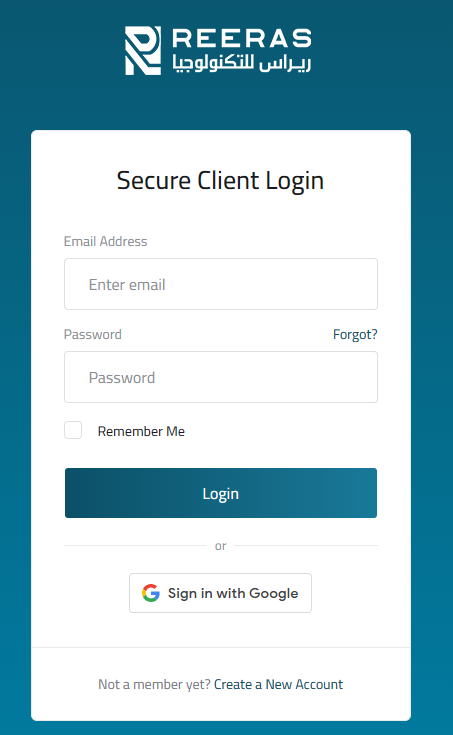
- list will appear to you ,choose services
- list of services will appear to you ,choose the service you want to control

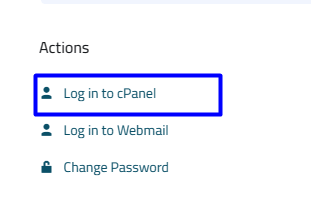
- list of actions will appear ,choose login to cpanel ,As in the following image
- list of emails will appear to you ,choose Address Importer ,As in the following image

- choose Email accounts then select the file that you want to use for the import ,As in the following image

- When choosing a file you will show a new step ,it's often a comma, but not always. Select the first row where the column head box is checked if you want to ignore the first row of data in your file and then press (next),As in the following image

-
Under Step 1, select the correct headers for your data:
- Ignore: cPanel ignores the entire column of data.
- Email: cPanel interprets the column as e-mail addresses or usernames.
- Password: cPanel interprets the column as passwords for e-mail accounts.
- Domain: cPanel intreprets the column as the domain.
- Quota (MB): cPanel interprets the column as the mailbox quota size, in megabytes.

- select the domain for the e-mail accounts

- Click ,As in the following image

- Review the information to make sure that it is correct, and then click to import the data.

