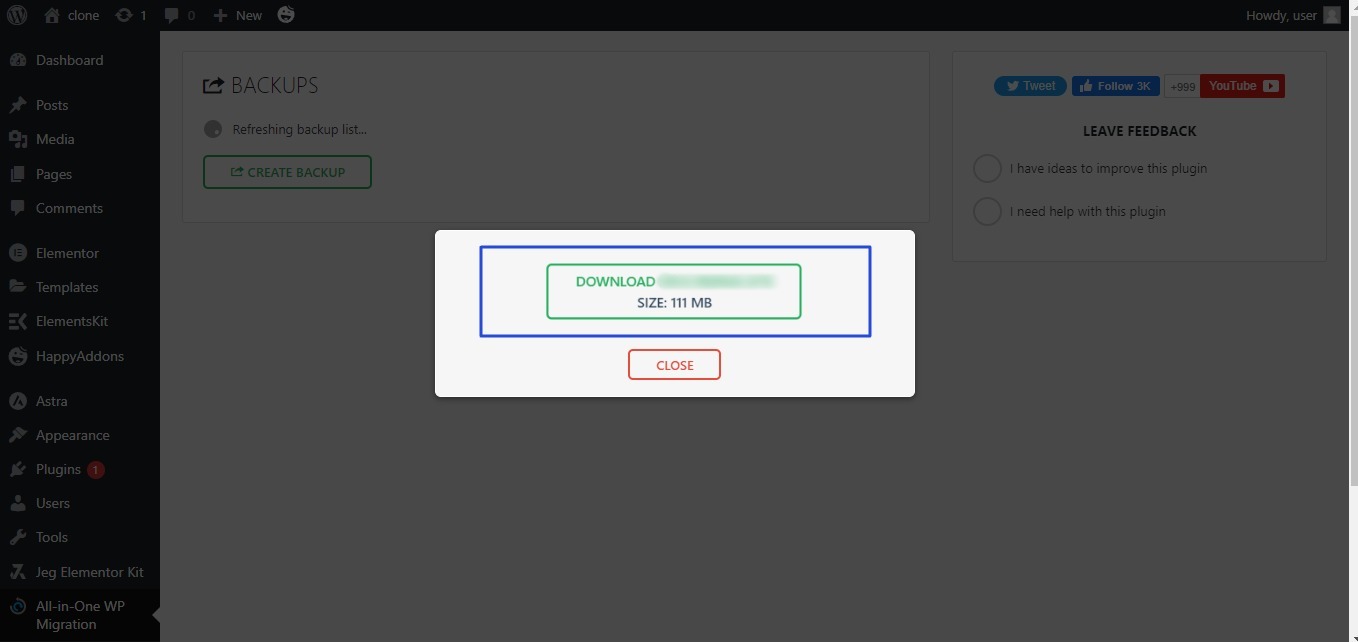
How To take a copy of my wordpress website?
طباعة- Login to cPanel using Email Account and Password
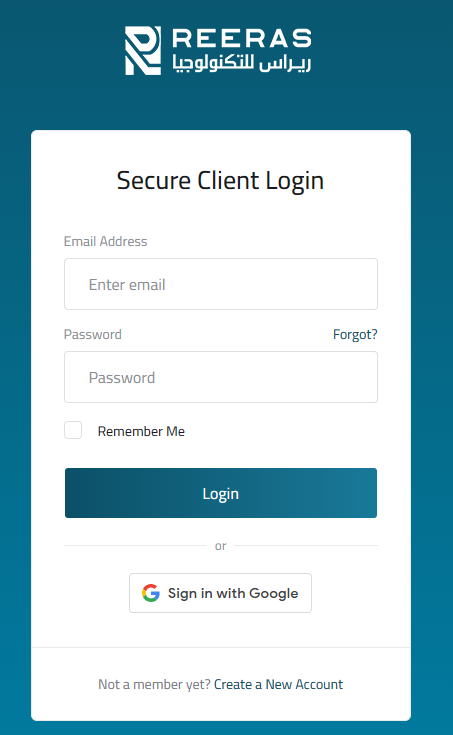
- List will appear to you ,choose Services
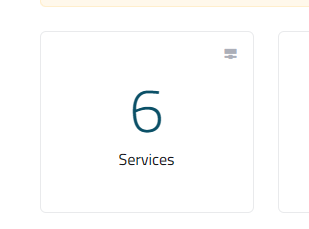
- List of Services will appear to you ,choose the Service you want to control

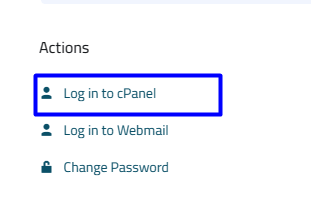
- List of Actions will appear ,choose Login to cPanel
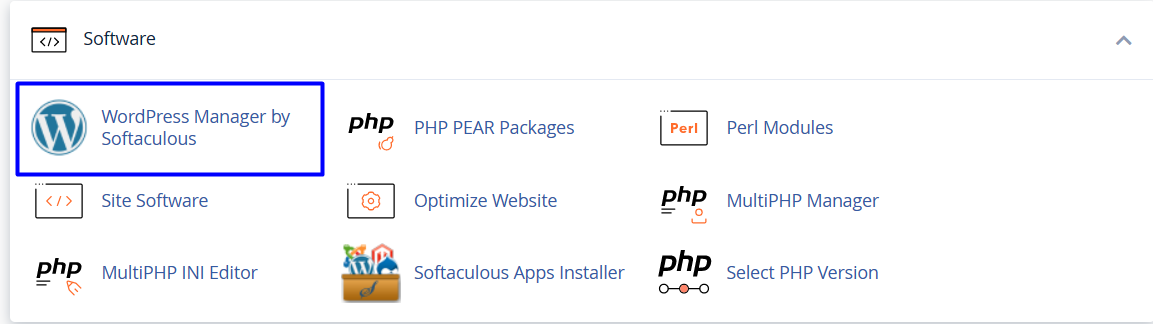
- List of Software will appear, choose Wordpress Manager by Softaculous As in the following image
 '
'
- choose the website you want to upload on it then choose login , As in the following image

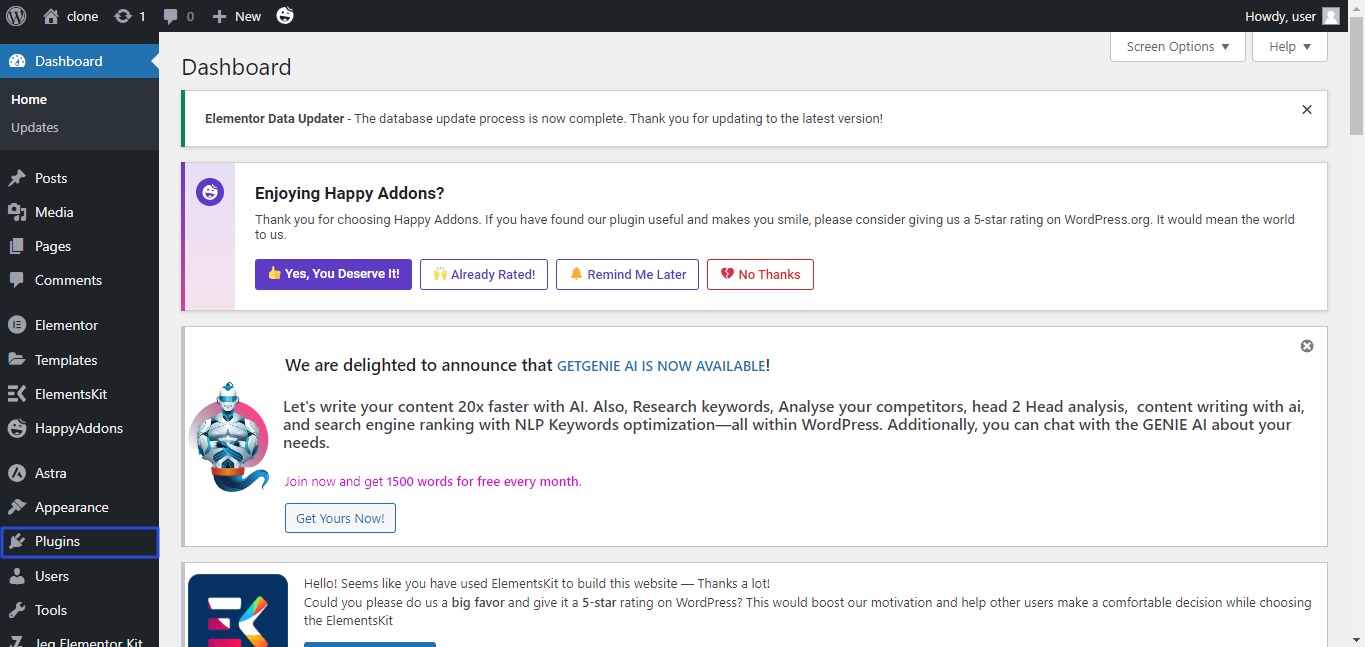
- Dashboard will appear, choose plugins As in the following image
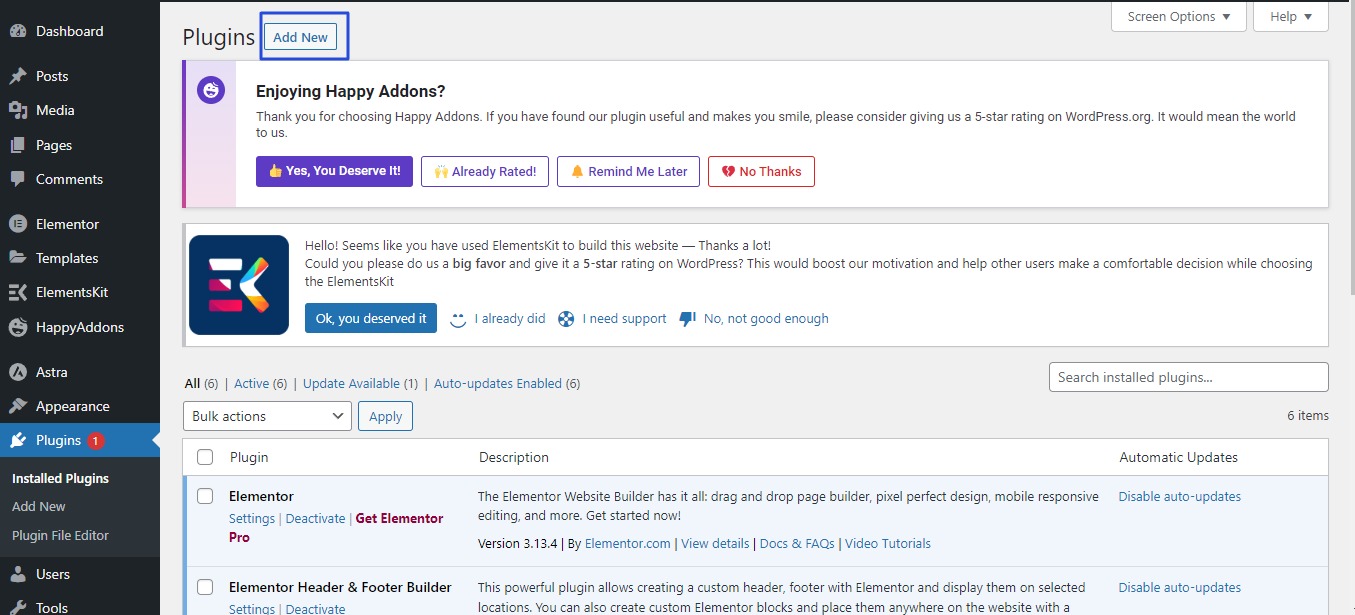
- List of plugins will appear , click Add New As in the following image
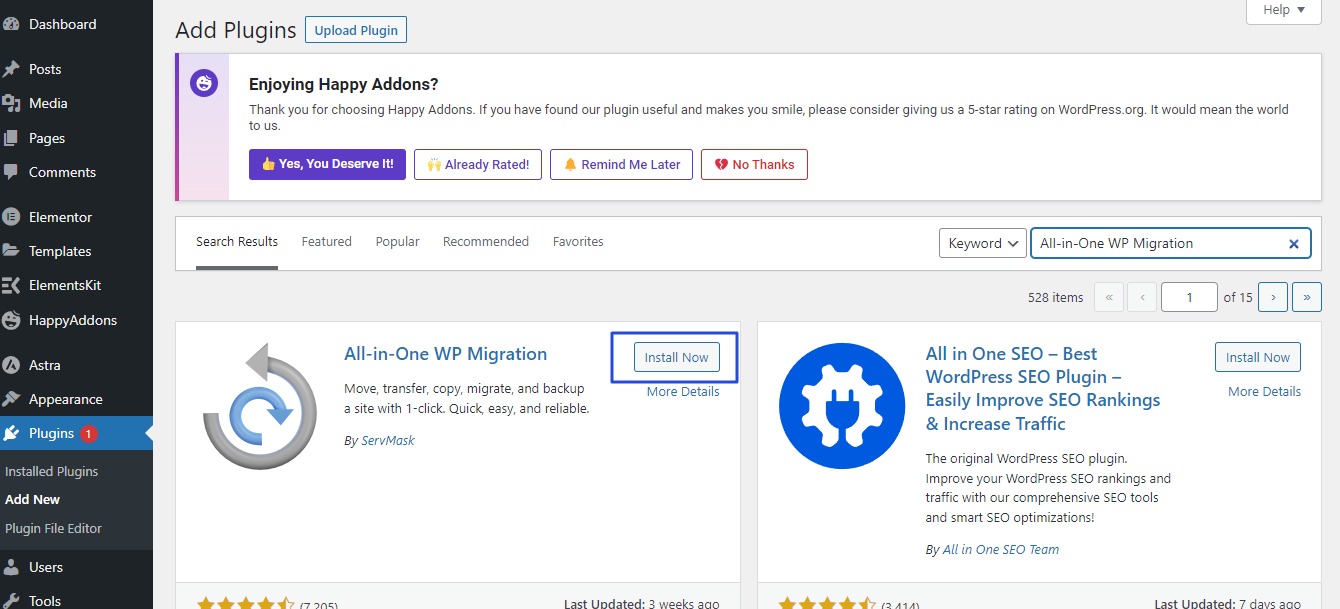
- New list will appear, write All-in-One WP Migration in search area As in the following image
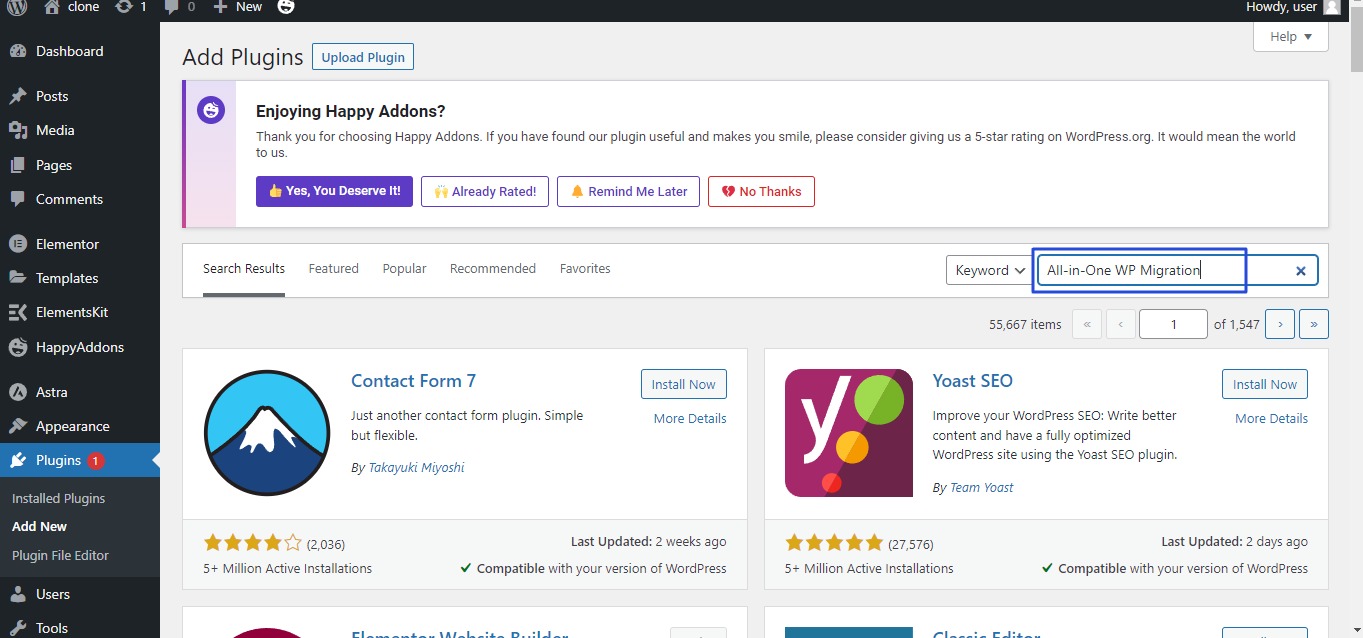
- Required plugin will appear to you , click Install Now As in the following image
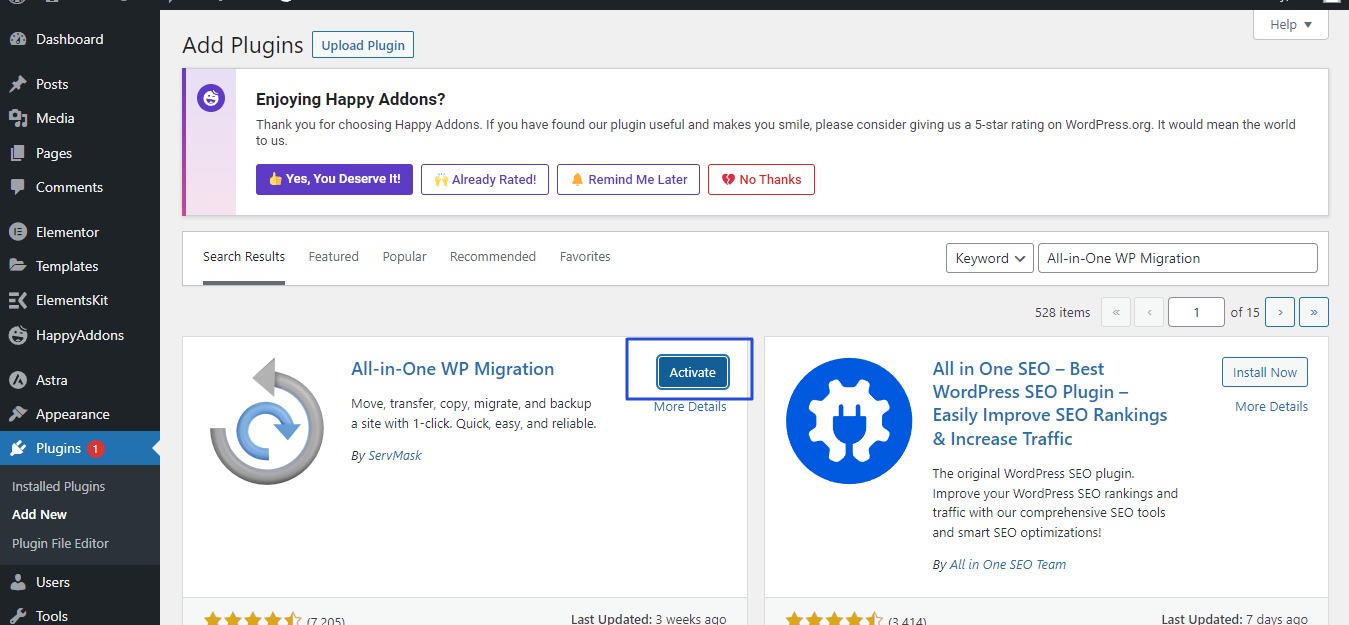
- After Installation completed , click Activate AS in the following image
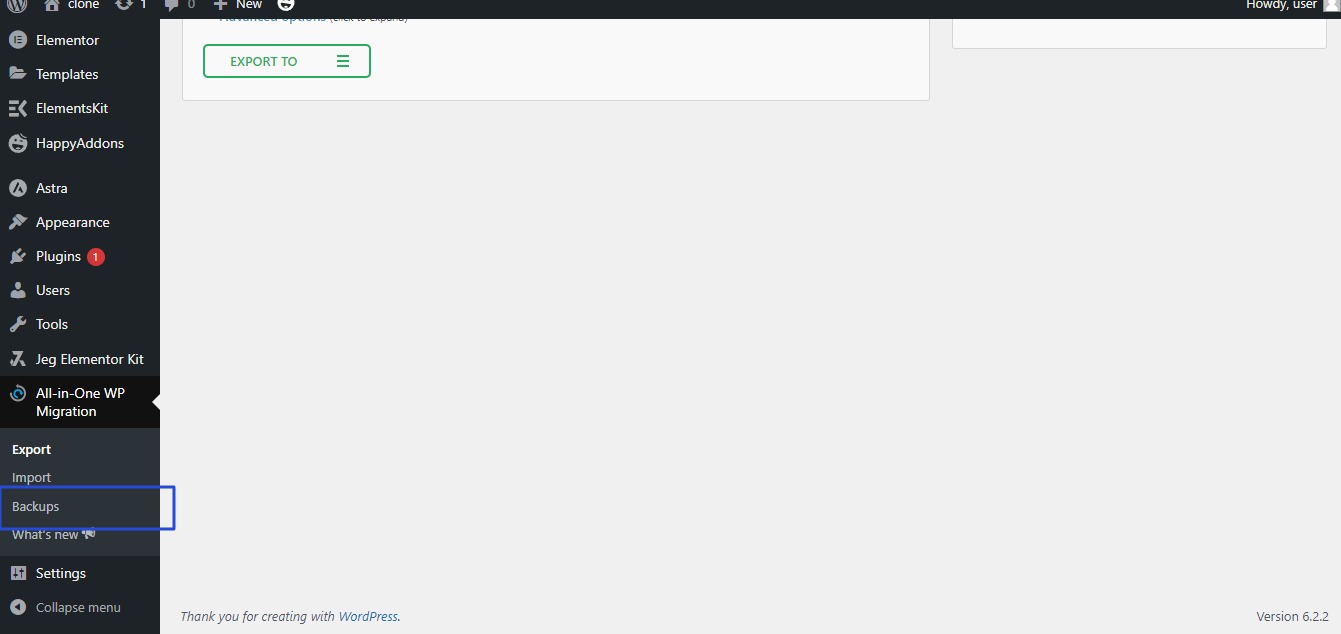
- All-in-One WP Migration plugin will now appear on the side bar, click Backups As in the following image
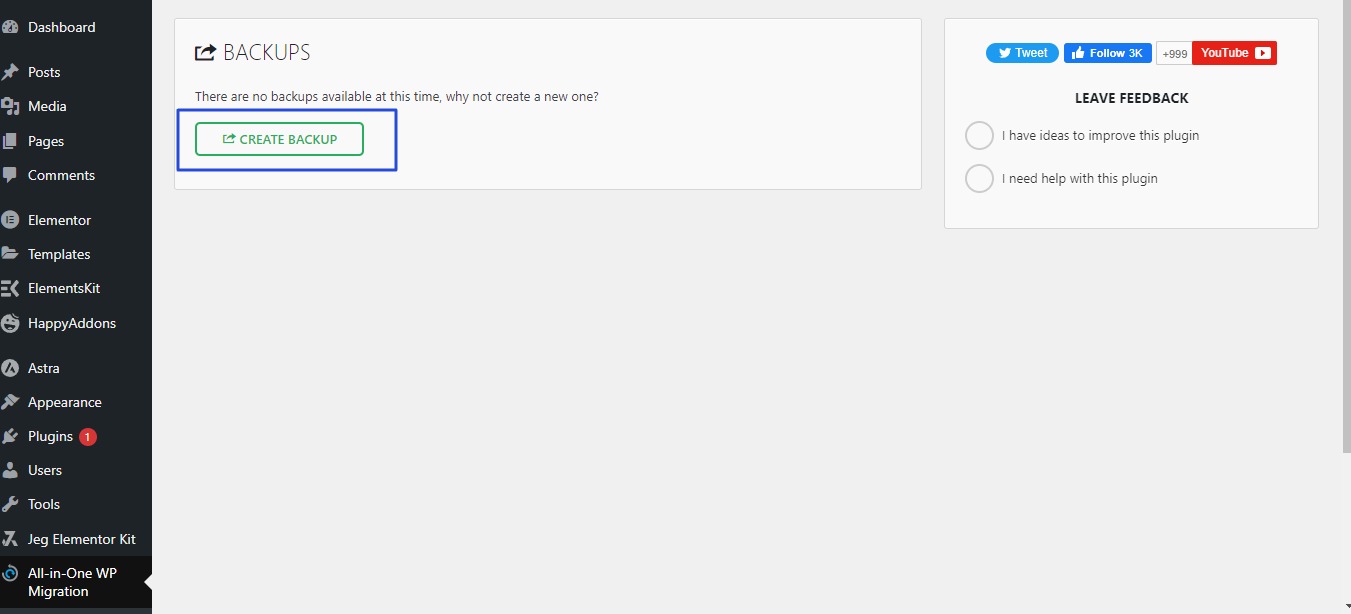
- New list will appear, click on create Backup As in the following image
- New list will appear, click on Download Backup As in the following image