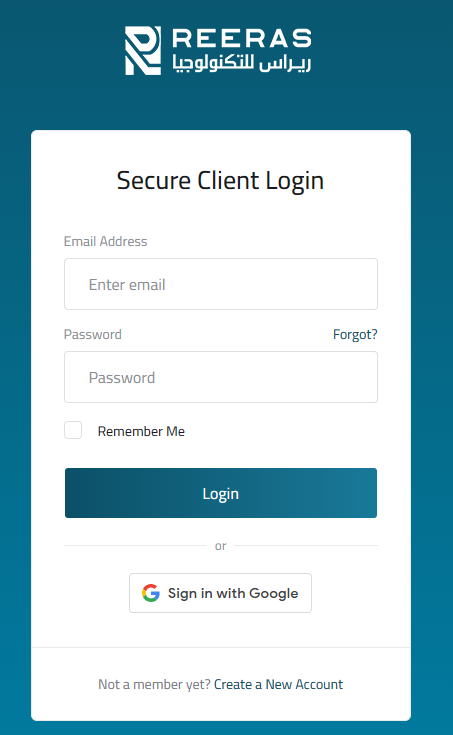
- Login to cPanel using Email Account and Password
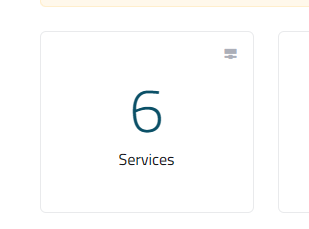
- List will appear to you ,choose Services
- List of Services will appear to you ,choose the Service you want to control

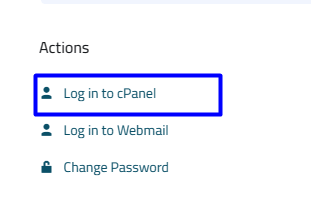
- List of Actions will appear ,choose Login to cPanel
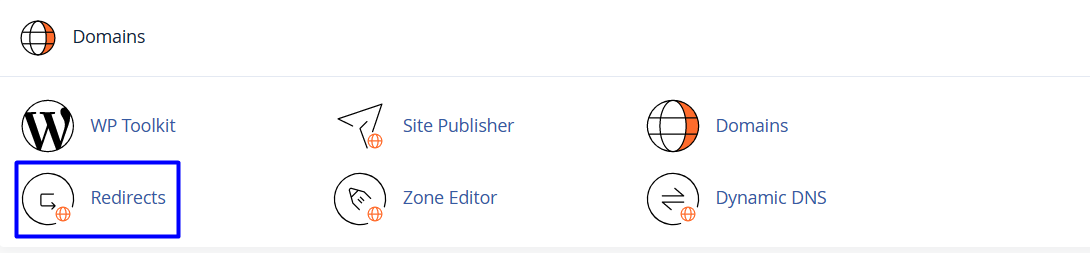
- List of Domains will appear, choose redirects As in the following image
-
Under Add Redirect, select the redirection type:
- To specify a permanent redirection, select Permanent (301)
- To specify a temporary redirection, select Temporary (302)

- Select the domain, and then type the web page that you want to redirect

- In the Redirects to text box, type the destination web page
- You can redirect the web page to another web page on your web site, or to a web page on a completely different web site

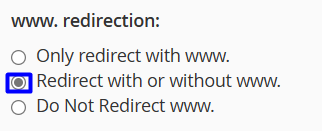
- Under www. redirection, select the option you want for redirecting domains that include www
-
To enable wild card redirecting, select the Wild Card Redirect check box
-
When wild card redirects are enabled, all files in a directory are redirected to their corresponding filenames in the redirected directory. This is an easy way to redirect an entire directory of files at once

- click add

- to remove redirect
- locate the redirect that you want to remove, and then click Delete

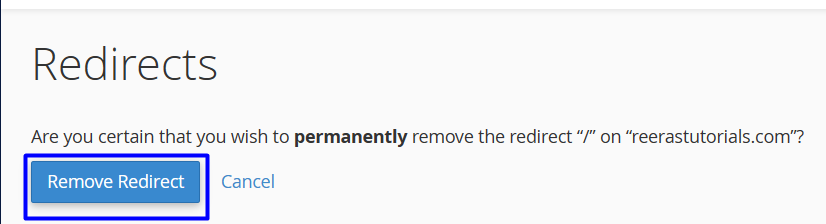
- Click to confirm the deletion. cPanel removes the redirect