
- Login to cPanel using Email Account and Password
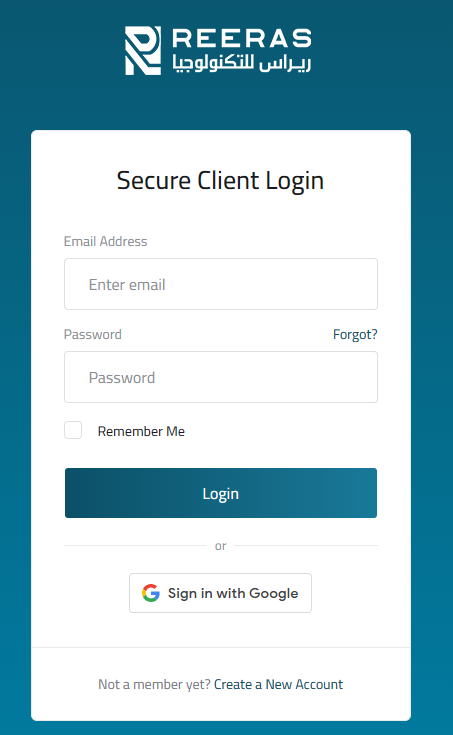
- List will appear to you ,choose Services
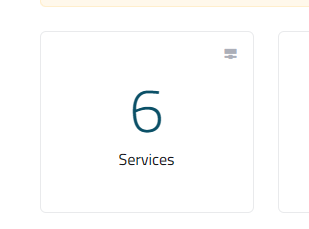
- List of Services will appear to you ,choose the Service you want to control

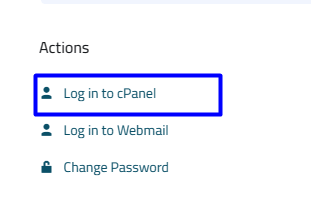
- List of Actions will appear ,choose Login to cPanel
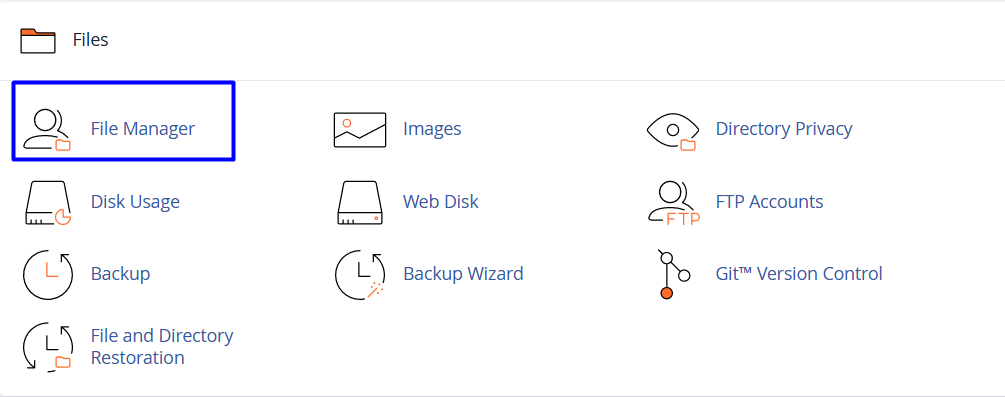
- List of Files will appear, choose File Manager as in the following image
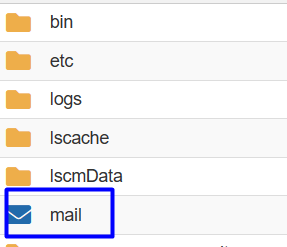
- New List will appear ,choose mail as in the following image
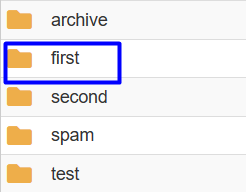
- Choose the email account you want to take backup from it , as in the following image
-
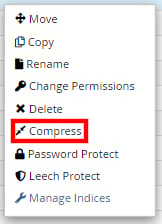
Next, right-click the domain mail folder. Of the several options that appear, click on Compress
- You will then choose which format you would like your files to be compressed in, as in the following image
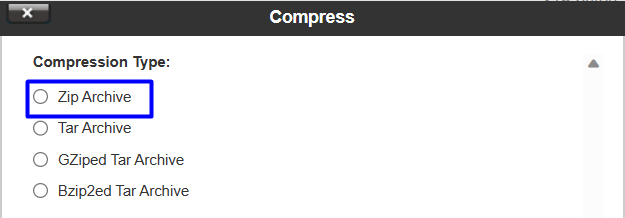
- Select the compression type that best suits your needs, and click Compress File

- Your new compressed file will now be listed as one of the available files in that section of File Manager’s directory. Right-click the compressed file and click Download. This will download the compressed file onto your local machine

- To save space on your hosting account, it highly advised that you delete the compressed file within File Manager. Simply right-click the compressed file and click Delete to remove it
-
You have now created a backup of your email (and messages).
