
How to add or edit in File Manager?
طباعة- Login to cPanel using Email Account and Password
- List will appear to you ,choose Services
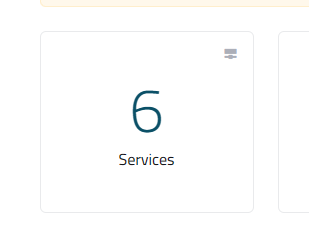
- List of Services will appear to you ,choose the Service you want to control

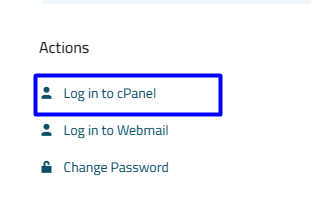
- List of Actions will appear ,choose Login to cPanel
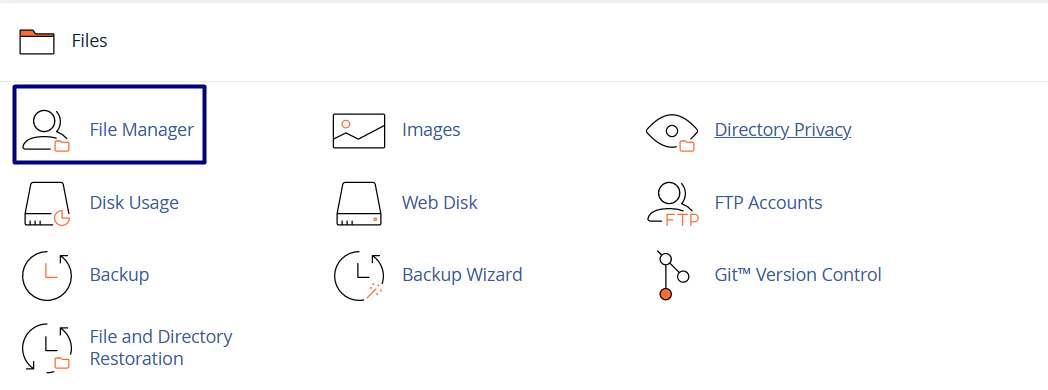
- List of files will appear to you , choose File Manager
- In the left sidebar, click the name of the directory that you want to open. The directory's contents appear in the right pane.
-
Browse the directory hierarchy:
- To view another directory or subdirectory, click its name in the left sidebar.
- To move up a level in the filesystem, click Up One Level.
- To expand a directory, in the left sidebar click the + icon.
- To collapse a directory, in the left sidebar click the - icon.
- To add a file, press the add file button as in the following image

- To add a folder, press the add a folder button as in the following image

- To copy a file or folder, click on the folder or file you want to copy and then choose to copy as in the photo

- To move the file or folder to another place click on the file or folder you want to move and then press move as in the following image

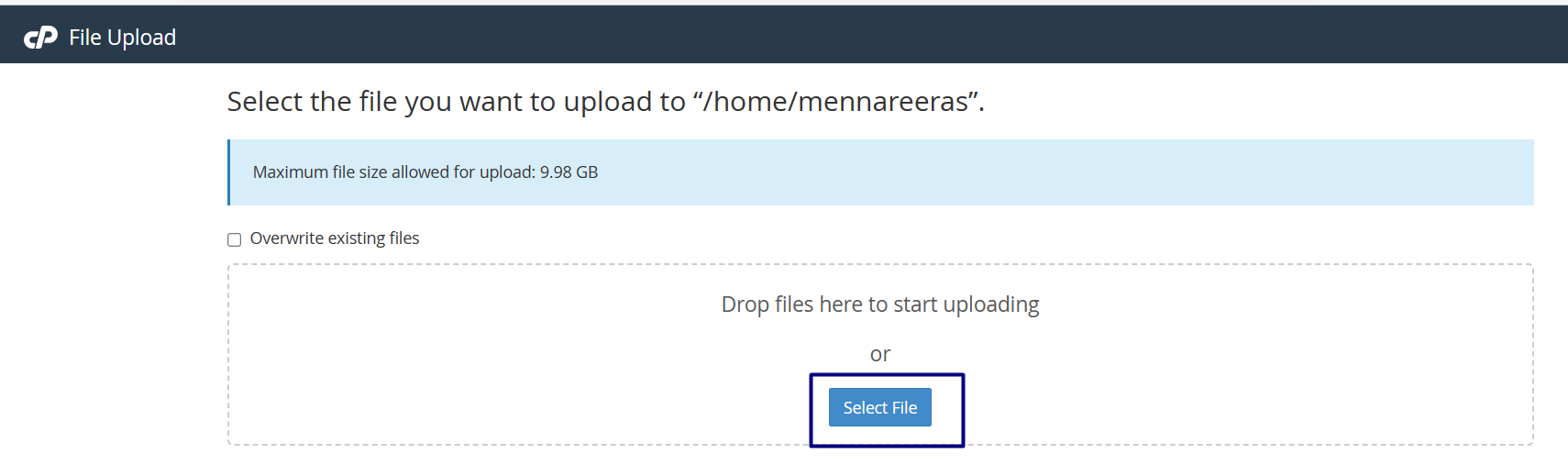
- To upload a file and add it to the cPanel, press upload and then select the file you want to upload from your device

- To download the file from your device, click on the file you want to download and then click on the download button as in the following image

- To delete a file or folder choose the file or folder you want to delete then press the delete button as in the following image

